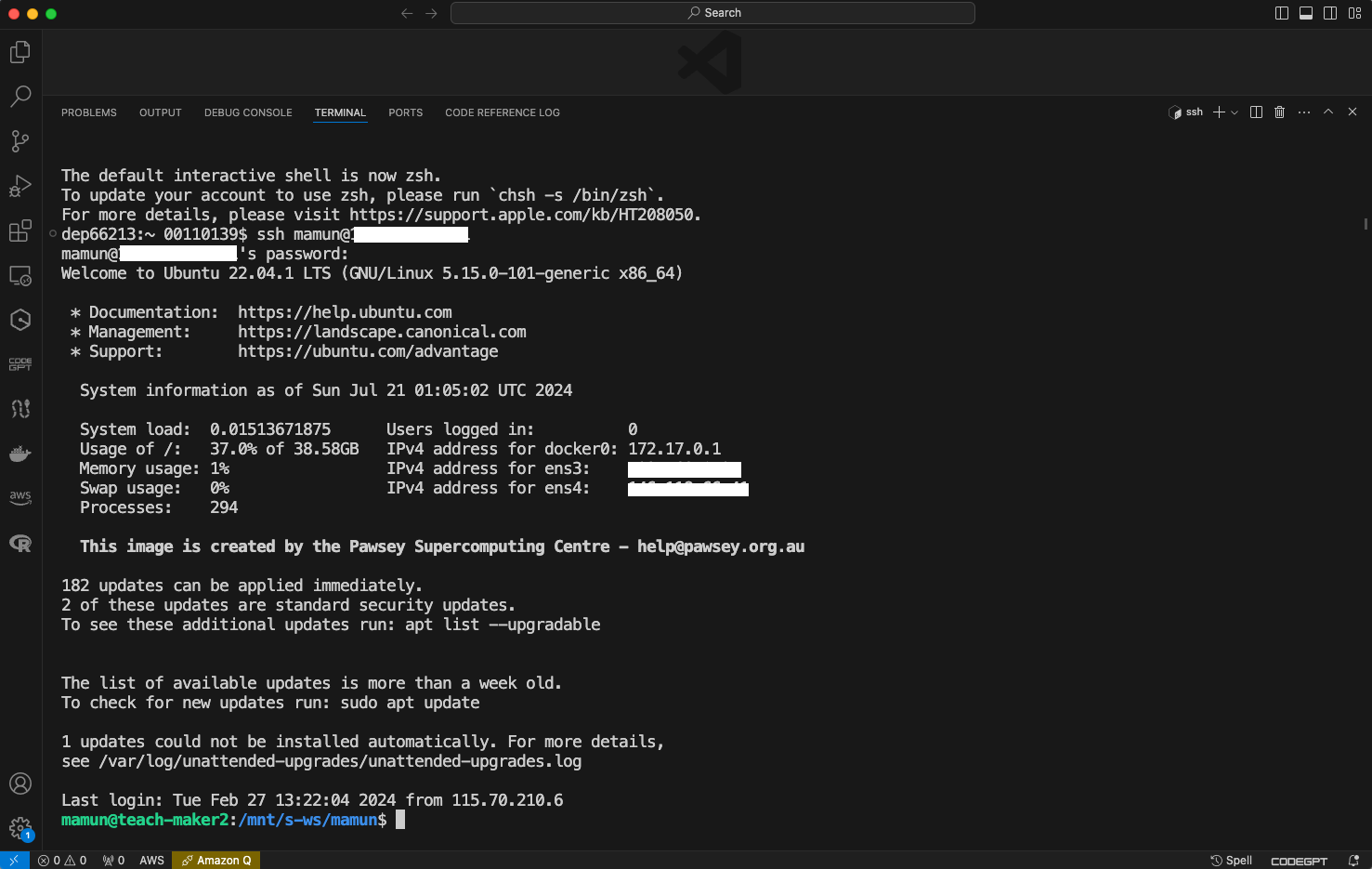
First Time Accessing the Server
In this chapter, we will guide you through your first time accessing our server. You will learn how to use your assigned user ID and password to connect the server from your computer. Let’s get started!
Accessing the Server
Each student will be provided with a unique user ID (e.g., s-1, s-2, s-3) and the server’s IP address. To access the server, you will use the ssh (Secure Shell) command. SSH allows you to securely connect to the server and interact with it via the command line.
Using the SSH Command
- Open VS Code Terminal:
- Launch Visual Studio Code.
- Open the integrated terminal by pressing
Ctrl +(backtick) or navigating to Terminal > New Terminal or View > Terminal (depending on VS Code version) from the menu.

- Connect to the Server:
In the terminal, type the following command:
ssh your_user_id@server_ipReplace
your_user_idwith your assigned user ID (e.g., s-1) andserver_ipwith the provided IP address of the server.Press Enter.
- Enter Your Password:
- You will be prompted to enter your password. Note that in Linux, when you type your password, nothing will be displayed on the screen (no asterisks or dots) for security reasons. This is different from Windows, where you typically see asterisks.
- Successful Connection:
- If your credentials are correct, you will be logged into the server and see a welcome message or command prompt.