1 Introducing the Shell
1.1 Accessing the Server
Each student will be provided with a unique user ID (e.g., s-1, s-2, s-3) and the server’s IP address. To access the server, you will use the ssh (Secure Shell) command. SSH allows you to securely connect to the server and interact with it via the command line.
1.1.1 Using the SSH Command
- Open VS Code Terminal:
- Launch Visual Studio Code.
- Open the integrated terminal by pressing
Ctrl +(backtick) or navigating to Terminal > New Terminal or View > Terminal (depending on VS Code version) from the menu.

- Connect to the Server:
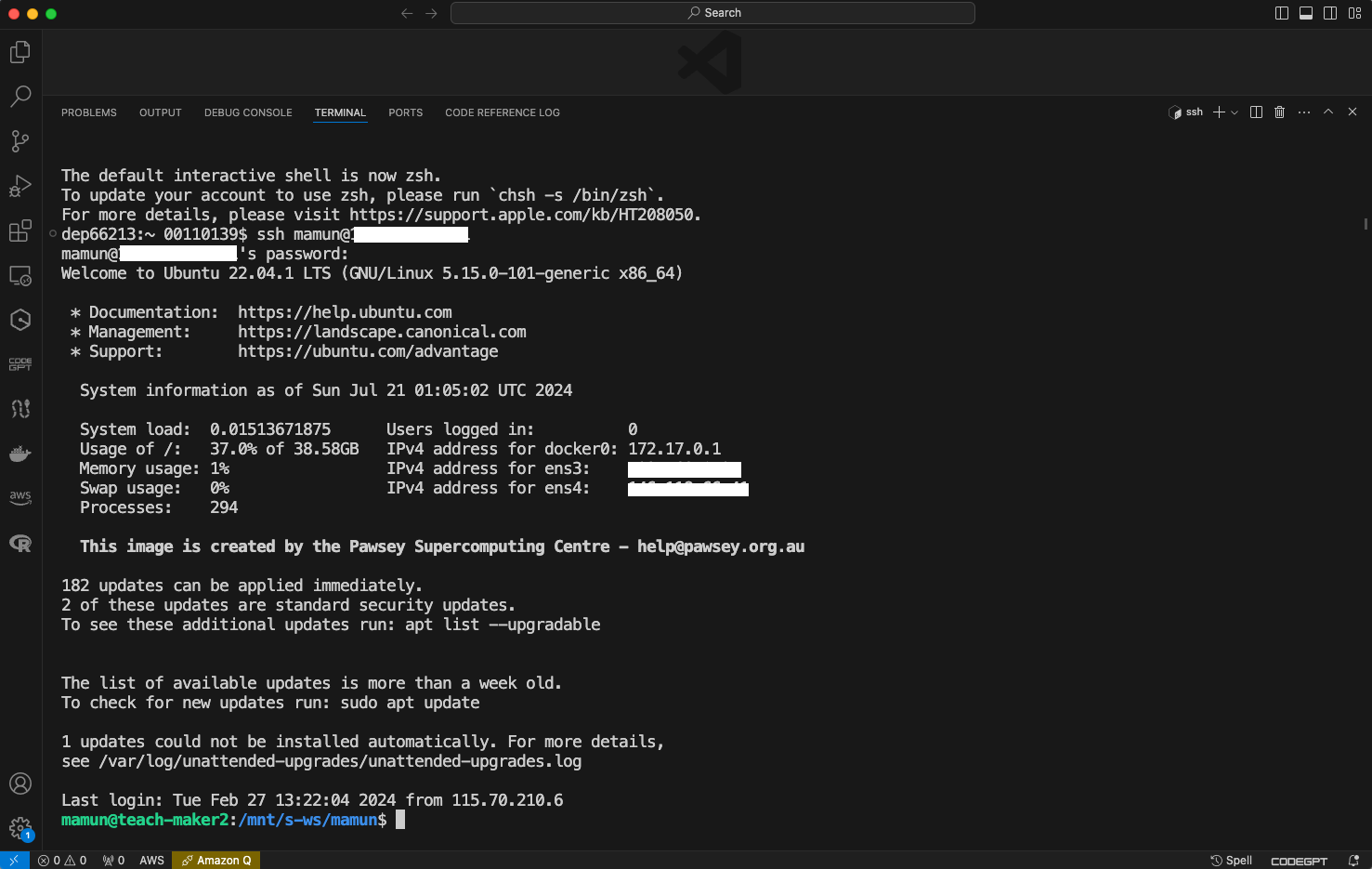
In the terminal, type the following command:
ssh your_user_id@server_ipReplace
your_user_idwith your assigned user ID (e.g., s-1) andserver_ipwith the provided IP address of the server.Press Enter.
- Enter Your Password:
- You will be prompted to enter your password. Note that in Linux, when you type your password, nothing will be displayed on the screen (no asterisks or dots) for security reasons. This is different from Windows, where you typically see asterisks.
- Successful Connection:
- If your credentials are correct, you will be logged into the server and see a welcome message or command prompt.
1.1.2 What is a Shell?
A shell is a command-line interface (CLI) that allows users to interact with the operating system by typing commands. It acts as an intermediary between the user and the kernel, interpreting and executing commands entered by the user. The shell is a powerful tool for managing files, running programs, and automating tasks through scripts.
1.1.3 Why Use the Shell?
- Efficiency: The shell allows users to perform complex tasks with simple commands, which can be more efficient than using a graphical user interface (GUI).
- Automation: With the shell, users can write scripts to automate repetitive tasks, saving time and reducing errors.
- Flexibility: The shell provides access to a wide range of tools and utilities, making it versatile for different types of tasks.
- Control: Advanced users can have more control over the system and its processes compared to using a GUI.
1.1.4 The Shell Prompt
When you open a terminal window, you will see a shell prompt. This prompt indicates that the shell is ready to accept commands. The prompt usually looks something like this:
username@hostname:~$Here’s a breakdown of the components:
username: Your user name on the system.hostname: The name of the computer or server.~: The current directory (in this case,~represents the home directory).$: The prompt symbol for a standard user (it changes to#for the root user).
1.2 Understanding Directories
1.2.1 Home Directory
Upon logging in, you will be in your home directory, usually located at /home/your_user_id. This directory is your personal space on the server. However, the home directory is usually very small and should not be used for extensive work or large data storage.
1.2.2 Scratch Directory
The /scratch directory (or similar) is a designated area for temporary storage of large files and data processing. This space is typically much larger than your home directory and is intended for heavy computational tasks.
1.2.3 Working Directory
For our course, you will use /mnt/s-ws/your_user_id as your working directory. This directory provides ample space for your projects and assignments.
1.2.5 Listing the files in the current directory
- ls will list of the contents of the current directory
- Example:
ls - Command not found
- If the shell can’t find a program whose name is the command you typed, it will print an error message such as:
ks
1.3 Summary
By following these steps, you will be able to access the server and navigate the directories effectively. Here’s a quick summary:
- Use SSH to connect to the server.
- Enter your password (nothing will be shown as you type).
- Understand the purpose of the home directory and
/scratch. - Use
/mnt/s-ws/your_user_idas your working directory. - Learn basic commands (
whoami,pwd,ls) and use Tab for auto-completion.