3 Working With Files and Directories
3.1 Creating directories
We now know how to explore files and directories, but how do we create them in the first place?
3.1.1 Step one: see where we are and what we already have
pwd
# move to the directory in /mnt/s-ws/ designated for you
# cd /mnt/s-ws/{your id}
cd /mnt/s-ws/mamun
# view the current contents
ls -F
3.1.2 Create a directory
Let’s create a new directory called thesis using the command mkdir thesis (which has no output):
mkdir thesisAs you might guess from its name, mkdir means ‘make directory’. Since thesis is a relative path (i.e., does not have a leading slash, like /what/ever/thesis), the new directory is created in the current working directory:
ls -FSince we’ve just created the thesis directory, there’s nothing in it yet:
ls -F thesisNote that mkdir is not limited to creating single directories one at a time. The -p option allows mkdir to create a directory with nested subdirectories in a single operation:
mkdir -p ../project/data ../project/resultsThe -R option to the ls command will list all nested subdirectories within a directory. Let’s use ls -FR to recursively list the new directory hierarchy we just created in the project directory:
ls -FR ../project3.2 Good names for files and directories
Complicated names of files and directories can make your life painful when working on the command line. Here we provide a few useful tips for the names of your files and directories.
Don’t use spaces.Spaces can make a name more meaningful, but since spaces are used to separate arguments on the command line it is better to avoid them in names of files and directories. You can use - or _ instead (e.g. north-pacific-gyre/ rather than north pacific gyre/). To test this out, try typing mkdir north pacific gyre and see what directory (or directories!) are made when you check with ls -F.
Don’t begin the name with - (dash).Commands treat names starting with - as options.
Stick with letters, numbers, . (period or ‘full stop’), - (dash) and _ (underscore).Many other characters have special meanings on the command line. We will learn about some of these during this lesson. There are special characters that can cause your command to not work as expected and can even result in data loss.
If you need to refer to names of files or directories that have spaces or other special characters, you should surround the name in single quotes (’’).
3.3 Create a text file
Let’s change our working directory to thesis using cd, then run a text editor called Nano to create a file called draft.txt:
cd thesis
nano draft.txt
Let’s type in a few lines of text.
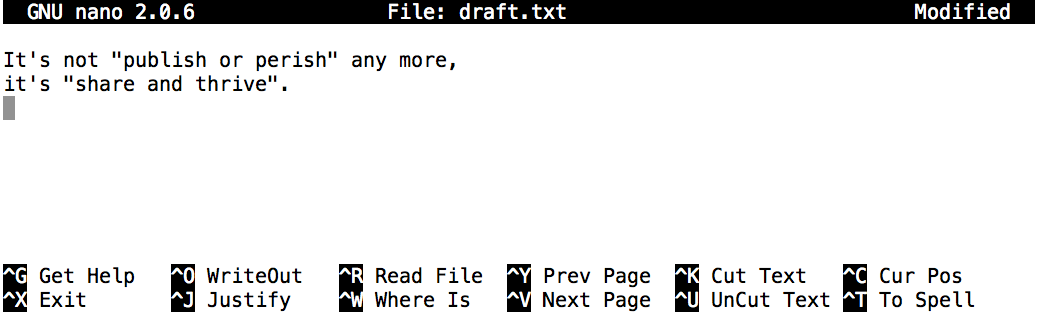
Once we’re happy with our text, we can press Ctrl+O (press the Ctrl or Control key and, while holding it down, press the O key) to write our data to disk. We will be asked to provide a name for the file that will contain our text. Press Return to accept the suggested default of draft.txt.
Once our file is saved, we can use Ctrl+X to quit the editor and return to the shell.
3.4 Viewing Files in the Terminal
When working with files in the terminal, several commands can help you view their contents efficiently. Here, we will discuss cat, head, tail, less, and more, highlighting their uses and differences.
3.4.1 cat
The cat command (short for “concatenate”) is used to display the contents of a file. It is best suited for small files because it outputs the entire content to the terminal.
3.4.1.1 Example:
cat filename.txtThis command will display the entire content of filename.txt.
3.4.2 head
The head command displays the first few lines of a file. By default, it shows the first 10 lines, but you can specify a different number of lines with the -n option.
3.4.2.1 Example:
head filename.txt
head -n 20 filename.txt
The first command shows the first 10 lines of filename.txt, while the second command shows the first 20 lines.
3.4.3 tail
The tail command displays the last few lines of a file. By default, it shows the last 10 lines, but you can specify a different number of lines with the -n option.
3.4.3.1 Example:
tail filename.txt
tail -n 20 filename.txt
The first command shows the last 10 lines of filename.txt, while the second command shows the last 20 lines.
3.4.4 less
The less command is a pager that allows you to view the contents of a file one screen at a time. It is particularly useful for large files, as it does not load the entire file into memory at once.
3.4.4.1 Example:
less filename.txtUse the arrow keys to scroll through the file. Press q to quit and return to the terminal.
3.4.5 more
The more command is another pager similar to less. It allows you to view the contents of a file one screen at a time. However, more is less powerful and flexible than less.
3.4.5.1 Example:
more filename.txtUse the spacebar to scroll down one screen at a time. Press q to quit.
3.4.6 Difference Between cat and less/more
cat: Displays the entire content of a file at once. It is useful for small files but can be overwhelming for large files since all content is outputted at once.less/more: Both are pagers that display one screen of content at a time, making them more suitable for large files.lessis generally preferred overmorebecause it provides more features, such as backward navigation and better performance.
3.5 Moving files and directories
In our thesis directory we have a file draft.txt which isn’t a particularly informative name, so let’s change the file’s name using mv, which is short for ‘move’:
mv thesis/draft.txt thesis/quotes.txtThe first argument tells mv what we’re ‘moving’, while the second is where it’s to go. In this case, we’re moving thesis/draft.txt to thesis/quotes.txt, which has the same effect as renaming the file. Sure enough, ls shows us that thesis now contains one file called quotes.txt:
ls thesisOne must be careful when specifying the target file name, since mv will silently overwrite any existing file with the same name, which could lead to data loss. By default, mv will not ask for confirmation before overwriting files. However, an additional option, mv -i (or mv --interactive), will cause mv to request such confirmation.
Note that mv also works on directories.
Let’s move quotes.txt into the current working directory. We use mv once again, but this time we’ll use just the name of a directory as the second argument to tell mv that we want to keep the filename but put the file somewhere new. (This is why the command is called ‘move’.) In this case, the directory name we use is the special directory name . that we mentioned earlier.
mv thesis/quotes.txt .3.6 Copying files and directories
The cp command works very much like mv, except it copies a file instead of moving it. We can check that it did the right thing using ls with two paths as arguments — like most Unix commands, ls can be given multiple paths at once:
cp quotes.txt thesis/quotations.txt
ls quotes.txt thesis/quotations.txt
We can also copy a directory and all its contents by using the recursive option -r, e.g. to back up a directory:
cp -r thesis thesis_backupWe can check the result by listing the contents of both the thesis and thesis_backup directory:
$ ls thesis thesis_backupIt is important to include the -r flag. If you want to copy a directory and you omit this option you will see a message that the directory has been omitted because -r not specified.
$ cp thesis thesis_backup
cp: -r not specified; omitting directory 'thesis'
3.7 Removing files and directories
Returning to the shell-lesson-data/exercise-data/writing directory, let’s tidy up this directory by removing the quotes.txt file we created. The Unix command we’ll use for this is rm (short for ‘remove’):
rm quotes.txtWe can confirm the file has gone using ls:
ls quotes.txt3.8 Using rm Safely
What happens when we execute rm -i thesis_backup/quotations.txt? Why would we want this protection when using rm?
Solution (Solution).
rm: remove regular file 'thesis_backup/quotations.txt'? yThe -i option will prompt before (every) removal (use Y to confirm deletion or N to keep the file). The Unix shell doesn’t have a trash bin, so all the files removed will disappear forever. By using the -i option, we have the chance to check that we are deleting only the files that we want to remove.
If we try to remove the thesis directory using rm thesis, we get an error message:
rm thesisThis happens because rm by default only works on files, not directories.
rm can remove a directory and all its contents if we use the recursive option -r, and it will do so without any confirmation prompts:
rm -r thesisGiven that there is no way to retrieve files deleted using the shell, rm -r should be used with great caution (you might consider adding the interactive option rm -r -i).
3.9 Using Wildcards for Accessing Multiple Files at Once
Wildcards are special characters that allow you to access multiple files at once. They are particularly useful for handling groups of files without needing to list each one individually.
3.9.1 The Asterisk (*)
The * wildcard represents zero or more characters. For example, in the shell-lesson-data/exercise-data/alkanes directory:
*.pdbmatches all files ending with.pdb, such asethane.pdb,propane.pdb, and any other files with the.pdbextension.p*.pdbmatches files starting with the letterpand ending with.pdb, such aspentane.pdbandpropane.pdb.
cd ../mamun/shell-lesson-data/exercise-data/alkanes/
ls *.pdb
This command lists all .pdb files in the current directory. If you use:
ls p*.pdbIt lists only .pdb files that start with p.
3.9.2 The Question Mark (?)
The ? wildcard represents exactly one character. For example:
?ethane.pdbcould matchmethane.pdbbut notethane.pdb, because?represents exactly one character.*ethane.pdbmatches bothethane.pdbandmethane.pdb, as the*can represent zero or more characters.
3.9.3 Combining Wildcards
Wildcards can be combined for more specific patterns. For example:
???ane.pdbmatches files with exactly three characters followed byane.pdb, such ascubane.pdb,ethane.pdb, andoctane.pdb.
3.9.4 Handling Non-Matching Wildcards
If a wildcard pattern does not match any files, the shell passes the pattern as it is to the command, which can result in an error. For example, if you type:
ls *.pdfin a directory containing only .pdb files, you will receive an error stating that no such file or directory exists.
3.10 Summary
cp [old] [new]copies a file.mkdir [path]creates a new directory.mv [old] [new]moves (renames) a file or directory.rm [path]removes (deletes) a file.cat: Use for small files to quickly view the entire content.head: Use to view the beginning of a file.tail: Use to view the end of a file.less: Use for large files to navigate through content efficiently.more: Similar toless, but with fewer features.*matches zero or more characters in a filename, so*.txtmatches all files ending in.txt.?matches any single character in a filename, so?.txtmatchesa.txtbut notany.txt.- Use of the Control key may be described in many ways, including
Ctrl-X,Control-X, and^X. - The shell does not have a trash bin: once something is deleted, it’s really gone.
- Most files’ names are
something.extension. The extension isn’t required, and doesn’t guarantee anything, but is normally used to indicate the type of data in the file. - Depending on the type of work you do, you may need a more powerful text editor than Nano.